

How to turn a photo into pixel art
Any picture can become pixel art: your cat, your favorite place, a selfie, a painting. Image to Pixel does it in a moment, in the colors you choose - and it works with GIFs, videos and your camera too. Here is how, step by step. Your picture never leaves your device.
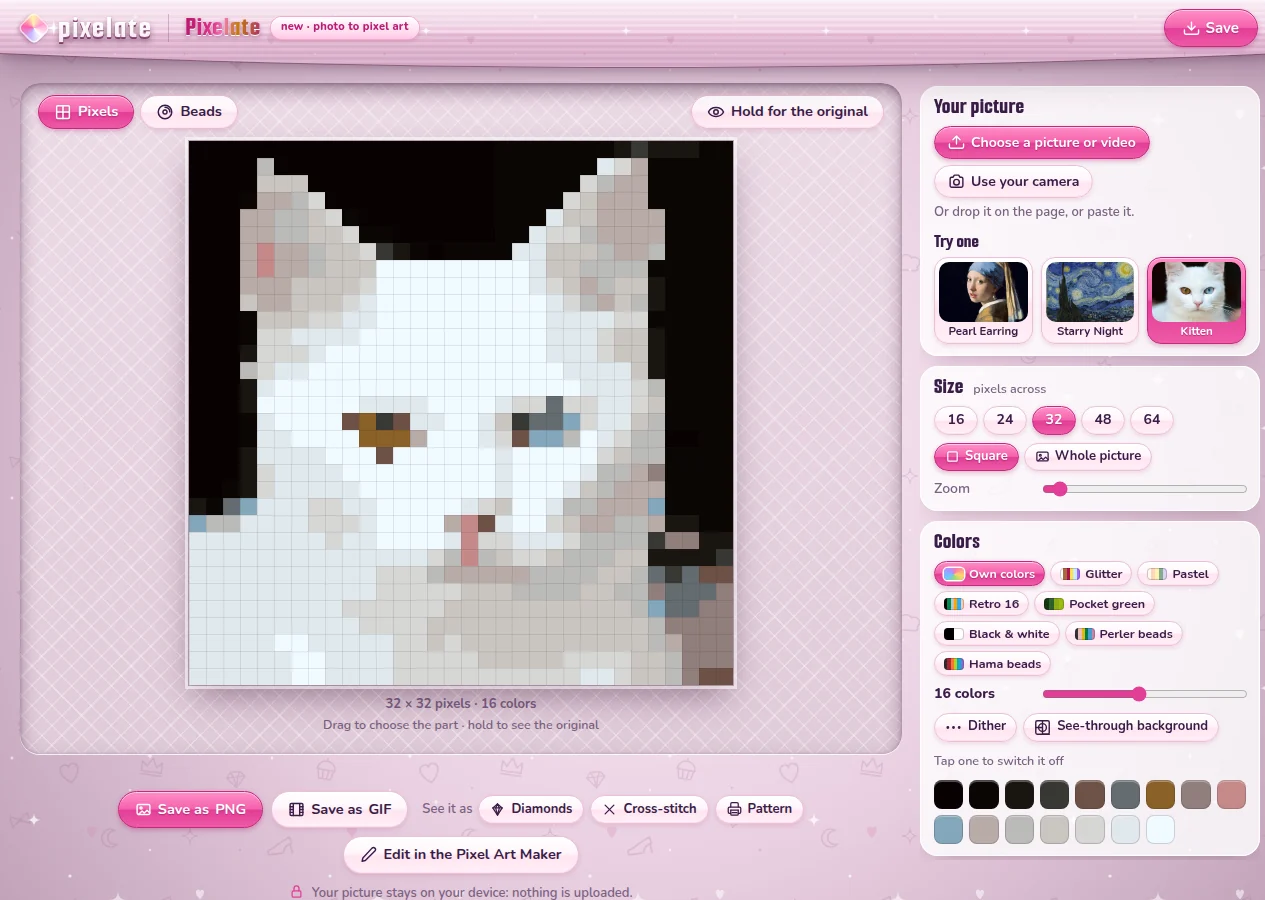
1 Choose a picture
Open Image to Pixel - it says Image to Pixel at the top. Under Your picture, press Choose a picture or video and pick one from your phone or computer. You can also drop a picture on the page, or paste one. Just looking? Under Try one are three to play with: Pearl Earring, Starry Night and a Kitten.
2 Choose the part and the size
Under Size, pick how many pixels across: 16, 24, 32, 48 or 64. Fewer pixels make it bold and simple, like an old game; more pixels keep more detail.
- Square takes a square out of your picture: drag on the pixels to choose the part, a face for instance (on a phone: hold, then drag), and slide Zoom to come closer.
- Whole picture keeps all of it, wide or tall, with the size on its longest side.
Press and hold Hold for the original to see the photo it came from.
3 Pick the colors
Under Colors, Own colors uses the colors of your picture itself; the slider sets how many, from 2 to 32. Few colors make it look more like real pixel art. Or pick a palette, and every pixel takes the nearest color of it:
- Glitter: the 32 cheerful colors of the Pixel Art Maker.
- Pastel: soft and light. Retro 16: sixteen bright colors of a retro game.
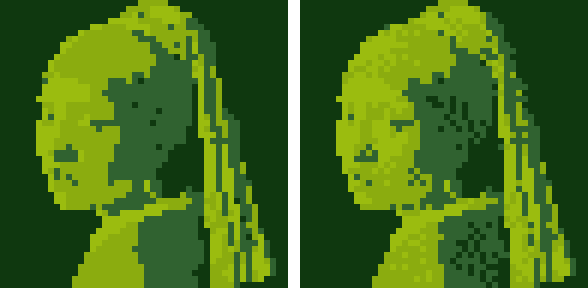
- Pocket green: the four greens of an old handheld game screen. Black & white: just those two.
- Perler beads and Hama beads: the real colors of those ironing beads, with their names and numbers - more in how to make a bead pattern.

4 Switch colors off
Under the palettes are the colors of your pixel art, as little chips. Don't like one - a gray that looks dirty, a brown in the sky? Tap it: it is crossed out, and the picture is made again without it, every pixel of it taking the nearest color that is left. Tap it again to have it back; All on brings back every color at once. A fixed palette, like Glitter or Perler beads, remembers what you switched off in this browser, for next time.
5 Dither and a see-through background
- Dither mixes two colors in a pattern of little dots where the picture shades from one to the other, as pixel artists do. It helps most with only a few colors.
- See-through background takes away the background around the edges, as far as it is plain, so your cat or flower stands on its own - for a sticker, or a page of your own. If there is no plain background, it leaves the picture as it is and says so.
6 A GIF or a video
Choose a GIF and it stays moving, every frame in pixels. Choose a video and it takes a bit of it: pick where it starts with Start, and under Length how long - 1 s to 4 s. All the frames share the same colors, so nothing flickers. Save it with Save as GIF and you have a little pixel movie.
7 Your camera, live
Press Use your camera and then Start the camera: you see yourself in pixels as you move. Your browser asks first whether the page may use the camera.
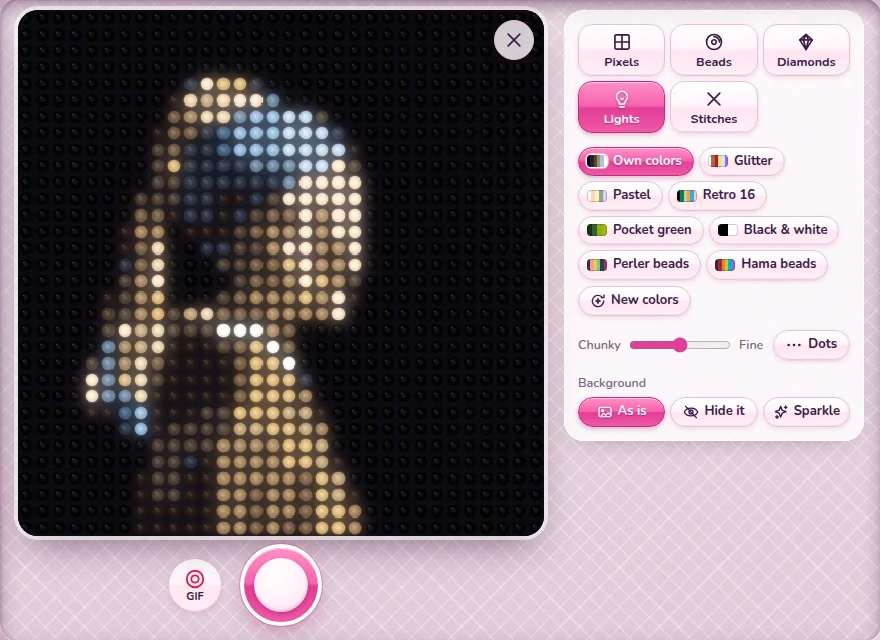
- Pick a look: Pixels, Beads, Diamonds, Lights (a wall of little lamps) or Stitches.
- Pick the colors, as in step 3; slide between Chunky and Fine; Dots shades with dots.
- Under Background, leave what is behind you As is, Hide it, or let it Sparkle.
- The big round button takes a picture after 3, 2, 1. GIF records two seconds of you moving.
What you take comes into Image to Pixel as your picture, to change and save like any other. The cross in the corner switches the camera off.
Nothing leaves your device. Your picture, your video and your camera are turned into pixels right in your browser: nothing is uploaded, not even for a moment.
8 Save it
Under the picture, Save as PNG saves it as a still picture, every pixel a sharp block; Save as GIF saves a moving one, or a still one as a GIF. On a phone, Save to Photos or share opens the list of apps. Next to them:
- Edit in the Pixel Art Maker (up to 32 × 32) opens it in the Pixel Art Maker, to draw on it pixel by pixel - or to make it move, as in how to make animated pixel art.
- See it as Diamonds, Cross-stitch or Pattern shows it as a diamond painting, as cross-stitch, or as a chart to print. Beads, at the top, puts it on a pegboard with a list of the beads it takes.
Turn a photo into pixel art or make a bead pattern of it
Good to know next
 How to make a Perler or Hama bead pattern from any picturePixel art or a photo as real fuse beads: the colors, the counts and a chart to print.
 How to make pixel art, pixel by pixelYour own pixel art on a grid of 16, 24 or 32, saved as a GIF or sent as a link.
 How to make animated pixel art (a moving GIF)Frames, onion skin and a speed: pixel art that blinks or bounces, as a GIF.
 Pixel art sharp on your page, and as your site iconPixel art crisp on Neocities or SpaceHey, and as the icon of your site.