

How to make animated pixel art (a moving GIF)
A blink, a bounce, a beating heart: pixel art that moves is a few drawings shown one after the other, like a flip book. Each drawing is a frame. Here is how to make them in the Pixel Art Maker and save it all as a moving GIF.


1 Draw the first frame
Open the Pixel Art Maker and draw something, or start from an idea - how is in how to make pixel art. Five of the ideas move already: the Butterfly, the Beating heart, the Sleepy kitty, Boo the ghost and the Shooting star. Open one and look at its frames to see how it is done.
2 Add frames
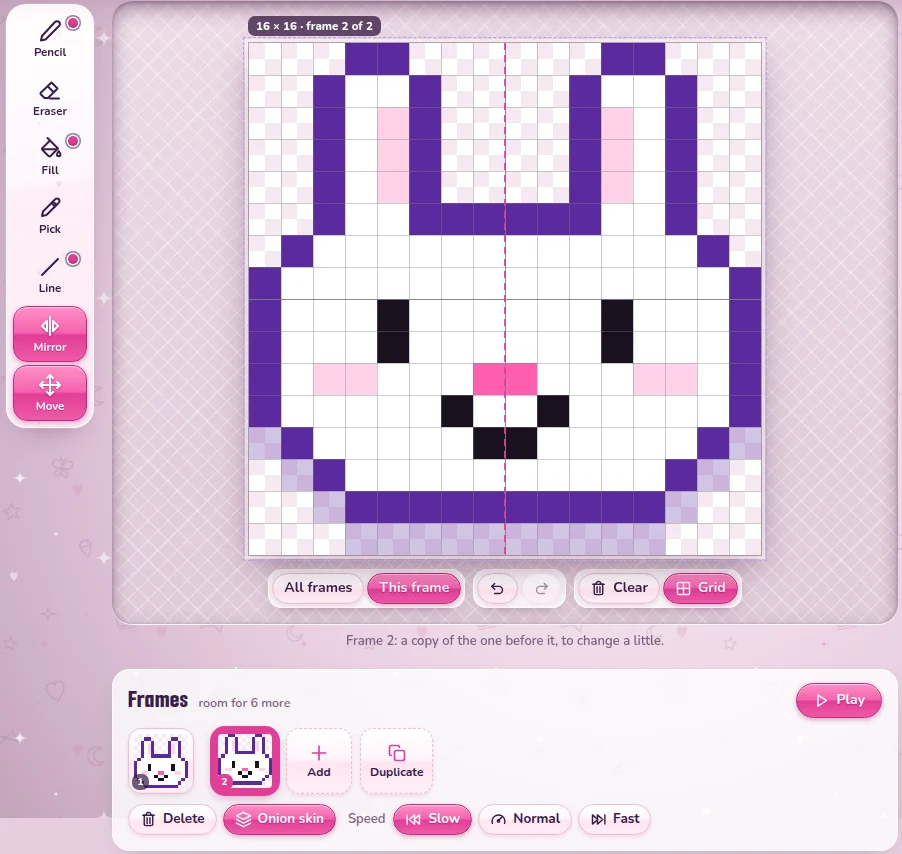
Under the paper is Frames, with your drawing as frame 1. There are two ways to add one:
- Duplicate makes a copy of the frame you are on, right after it. This is the one you need most: copy it, then change only what moves.
- Add makes a new, empty frame, to draw from scratch.
Tap a frame to go to it, and Delete takes the one you are on out again. A drawing can have up to 8 frames: next to Frames it says how many more there is room for. On a phone, the arrows under the paper go a frame back or on, next to Duplicate and Play.
3 See the frame before: onion skin
Onion skin is on from the start: wherever your frame is empty, the frame before it shows through, faintly. So you can see where things were, and draw them a little further along. Press it to switch it off.
4 Play it, and pick a speed
Press Play to see it move on the paper, round and round; tap the paper or press Stop to stop. Next to Speed, pick how long each frame shows: Slow, Normal or Fast. Every frame shows equally long - so to keep one longer, use it twice, as the blink below does.
5 Make it blink
- Draw a face with its eyes open, or take the bunny of how to make pixel art.
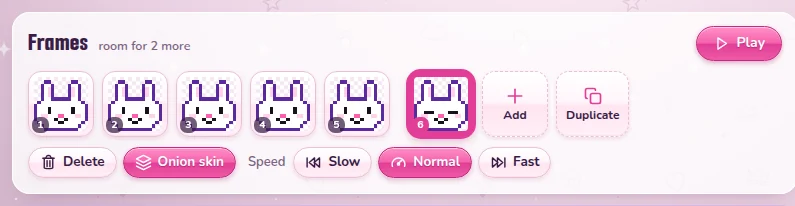
- Press Duplicate five times: now there are six frames, all the same.
- On frame 6, close the eyes: color the top of each eye like the face, and draw a short dark line where the eye was. With Mirror on, one eye is enough.
- Pick Normal and press Play: the eyes stay open for a second and close for a moment, again and again.
6 Make it bounce
- Start again from your drawing on one frame, with a little room above it, and press Duplicate.
- On frame 2, pick the tool Move. Under the paper, choose This frame - with All frames, every frame would move along.
- Drag the drawing up one pixel, or press the arrow key up once.
- Pick Slow and press Play: it bounces gently up and down.
More frames make a bigger jump: a third frame two pixels up and a fourth one pixel up, then down to the start again. The onion skin shows how far each one went.
7 Save it as a GIF
Under Save & share, pick 256 × 256 or 128 × 128 and press Save as GIF: all your frames, at your speed, playing round and round - on Facebook, in WhatsApp, on Discord or on your own page. PNG saves only the frame you see. Copy a link carries all the frames and the speed along, so a friend gets the whole animation to play with.
Keep it moving. Send the GIF itself, not a screenshot of it, or it stands still. How is in how to save a GIF so it keeps moving.
Make it move or start with how to make pixel art
Good to know next
 How to make pixel art, pixel by pixelYour own pixel art on a grid of 16, 24 or 32, saved as a GIF or sent as a link.
 Pixel art sharp on your page, and as your site iconPixel art crisp on Neocities or SpaceHey, and as the icon of your site.
 How to save a GIF so it keeps movingOn a computer or a phone, and why a screenshot stands still.
 How to make a Perler or Hama bead pattern from any picturePixel art or a photo as real fuse beads: the colors, the counts and a chart to print.