

How to save a GIF so it keeps moving
A GIF moves because it holds a whole row of pictures in one file. Save that file, and it keeps moving. A screenshot keeps only one of its pictures - that is why it stands still.
On a computer
Right-click the GIF and choose Save image as (in some browsers: Save Image As). Pick a folder, keep
.gif at the end of the name, and save.
On an Android phone
Press and hold the GIF until a menu opens, and choose Download image. It goes to your downloads.
On an iPhone or iPad
Press and hold the GIF until a menu opens, and choose Save to Photos (on an older iPhone: Add to Photos). Open it in the Photos app, and it moves.
Save it from its own page
In a list of graphics you see small previews. Click the graphic to open its own page, and save the big one there: that is the GIF itself, at its full size.
From the makers of Glitter Graphics
What you make on Glitter Graphics is saved as a GIF with one button:
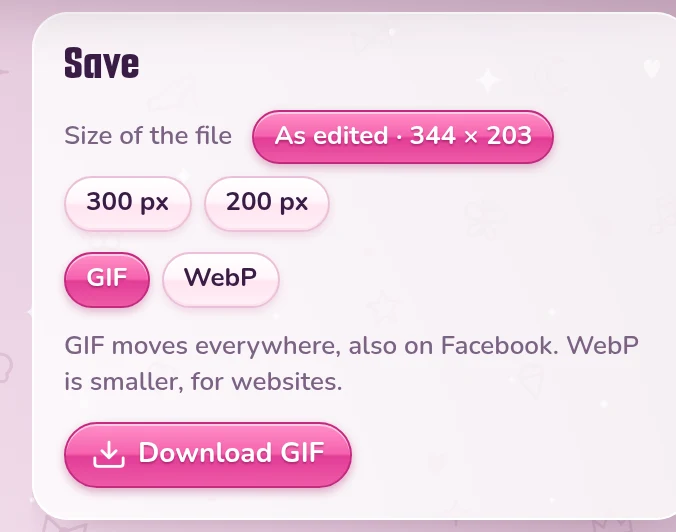
- Glitter Editor: open Save, choose GIF and click Download GIF. A GIF moves everywhere, also on Facebook; WebP is smaller, for websites. On a phone, Save to Photos or share appears: it puts the GIF in your photos or sends it to an app, and Or download the file saves it as a file.
- Blinkie Studio: click Download GIF. On a phone it opens the share sheet right away, to save it or send it on.
- Glitter text generator: click Make it one glitter GIF, then Download the GIF - or on a phone Save or share.
Still not moving?
- Check that the name of the file ends in
.gif. - Was it a screenshot? Save it again in one of the ways above.
- Some programs show only the first picture of a GIF. Open it in your web browser: there it moves.
Find a GIF to save or make one in the Glitter Editor
Good to know next
 How to post glitter GIFs and glitter text on FacebookThe link that moves on Facebook and Discord, and the GIF for WhatsApp.
 How to add blinkies to your Neocities pageCopy the code or upload the GIF, a wall of blinkies, and a blinkie of your own.
 How to show a small GIF bigger without blurring itOne line of CSS keeps a blinkie crisp at twice or three times its size.