How to post glitter GIFs and glitter text on Facebook
Glitter on Facebook should move - and it does, when you paste the right link. Every graphic on Glitter Graphics has that link ready for you, and so has every glitter text you make. Copy it, paste it, and your friends see it sparkle, with a way to find more under it.
1 Find a graphic, or make glitter text
Pick something that says what you want to say: a greeting for a day of the week, something for a holiday, an animated GIF, or search for a word like "hugs" or "good morning". Click it to open its page.
Want your own words, or a name? Make them in the glitter text generator - see how to make glitter text.
2 Copy the box for Facebook
On the page of a graphic, under the picture, is a box that says Copy this to Facebook or Discord. Click in it to select it all (on a phone: press and hold in the box, then Select all) and copy it. In the text generator the same box has its own Copy button.
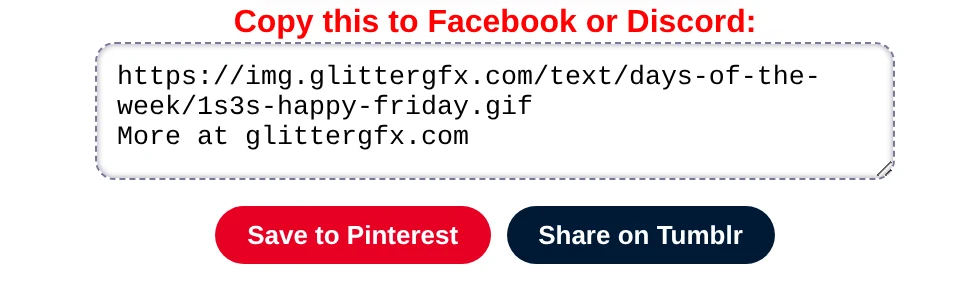
The first line is the picture itself, as a link that ends in .gif. The second line, More at
glittergfx.com, is the way to Glitter Graphics for whoever sees your post. Copy both.
3 Paste it in a post, a comment or a chat
On Facebook, start a new post, a comment or a chat message, and paste. Facebook shows the graphic moving, and turns the second line into a link people can click. Type your own words before it, if you like - "Happy Friday, everyone!" - and post it.
Happy Friday, everyone!
More at glittergfx.com

On Discord it works the same way: paste the two lines in a chat, and Discord shows the GIF moving.
WhatsApp and other apps: send the GIF itself
WhatsApp shows no picture for a link like this, so there you send the GIF itself. Three ways to get one:
- Glitter text: in the text generator, click Make it one glitter GIF. Then Download the GIF, or on a phone Save or share, which opens the list of apps to send it to.
- A graphic: save the GIF from its page, then send it as a photo. See how to save a GIF so it keeps moving.
- A graphic with your name on it: open it in the Glitter Editor with the pink Personalize: add a name button on its page, and save it as a GIF. On a phone, Save to Photos or share puts it in your photos or sends it to an app.
Pinterest and Tumblr
Under the box are two more buttons. Save to Pinterest pins the graphic, and the pin leads back to its page on Glitter Graphics. Share on Tumblr posts it on your Tumblr, with its page as the source.
Good to know
- Facebook does not play every GIF: a very small or very short one may not show moving. Glitter text from the generator is made big enough to play.
- A graphic of your own, made in the Glitter Editor or the Blinkie Studio, goes on Facebook as a file: save it as a GIF and post it as a photo.
Make glitter text or pick an animated GIF