

How to put your name on a glitter graphic
A sparkly picture with a name on it: yours, or a friend's, for a birthday, a hello or a good morning. The Glitter Editor of Glitter Graphics puts any name on a graphic in glittering letters, right in your browser, and the picture keeps moving.
1 Pick a graphic
Under a graphic on Glitter Graphics is a big pink button: Personalize: add a name. Click it, and the graphic opens in the Glitter Editor.
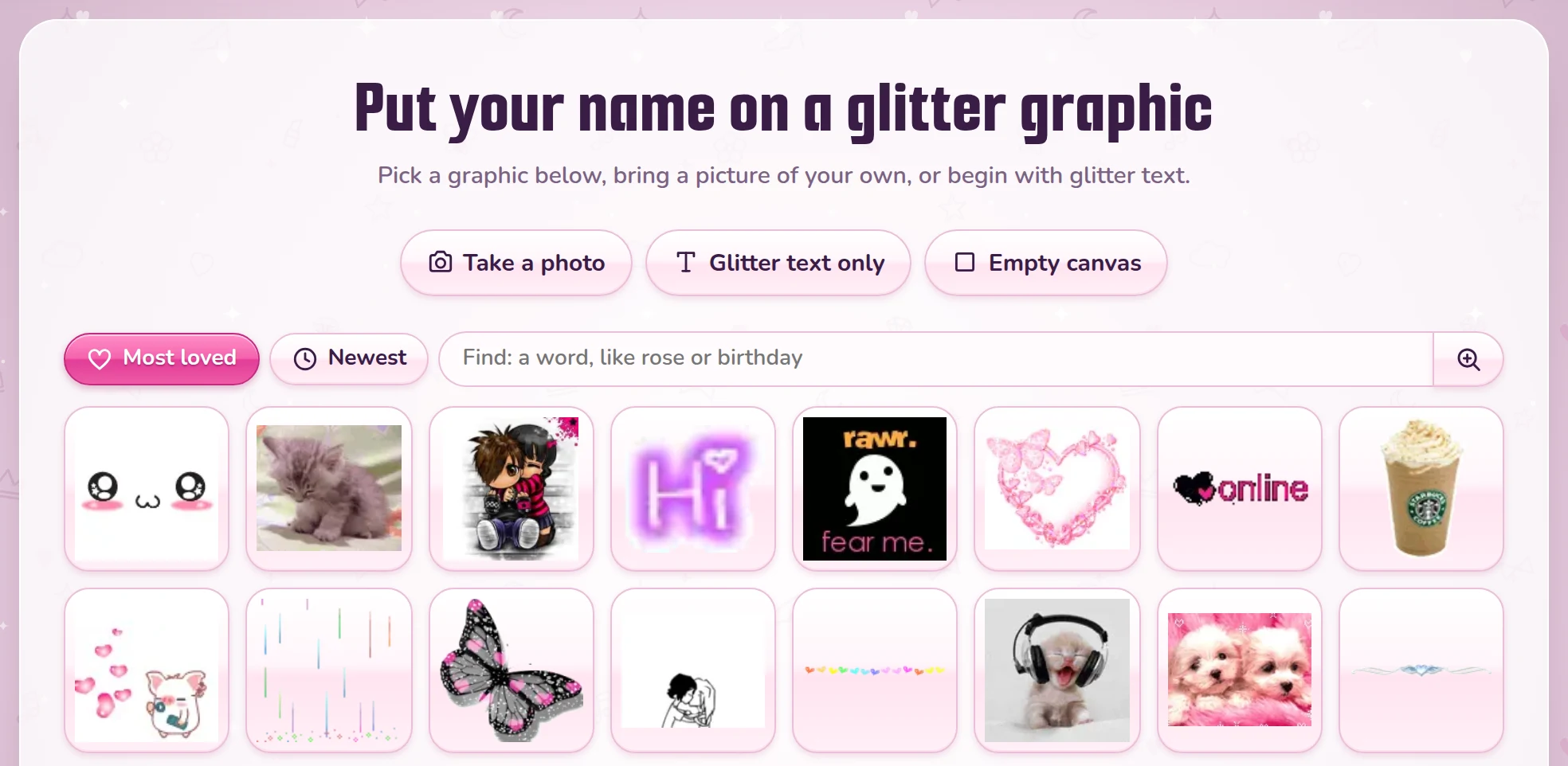
Or start at the Glitter Editor itself. It shows the most loved graphics and the newest, and finds one by a word: "rose", "birthday", "cat". You can also take a photo, bring a picture of your own, begin with glitter text only, or start on an empty canvas.
2 Type the name
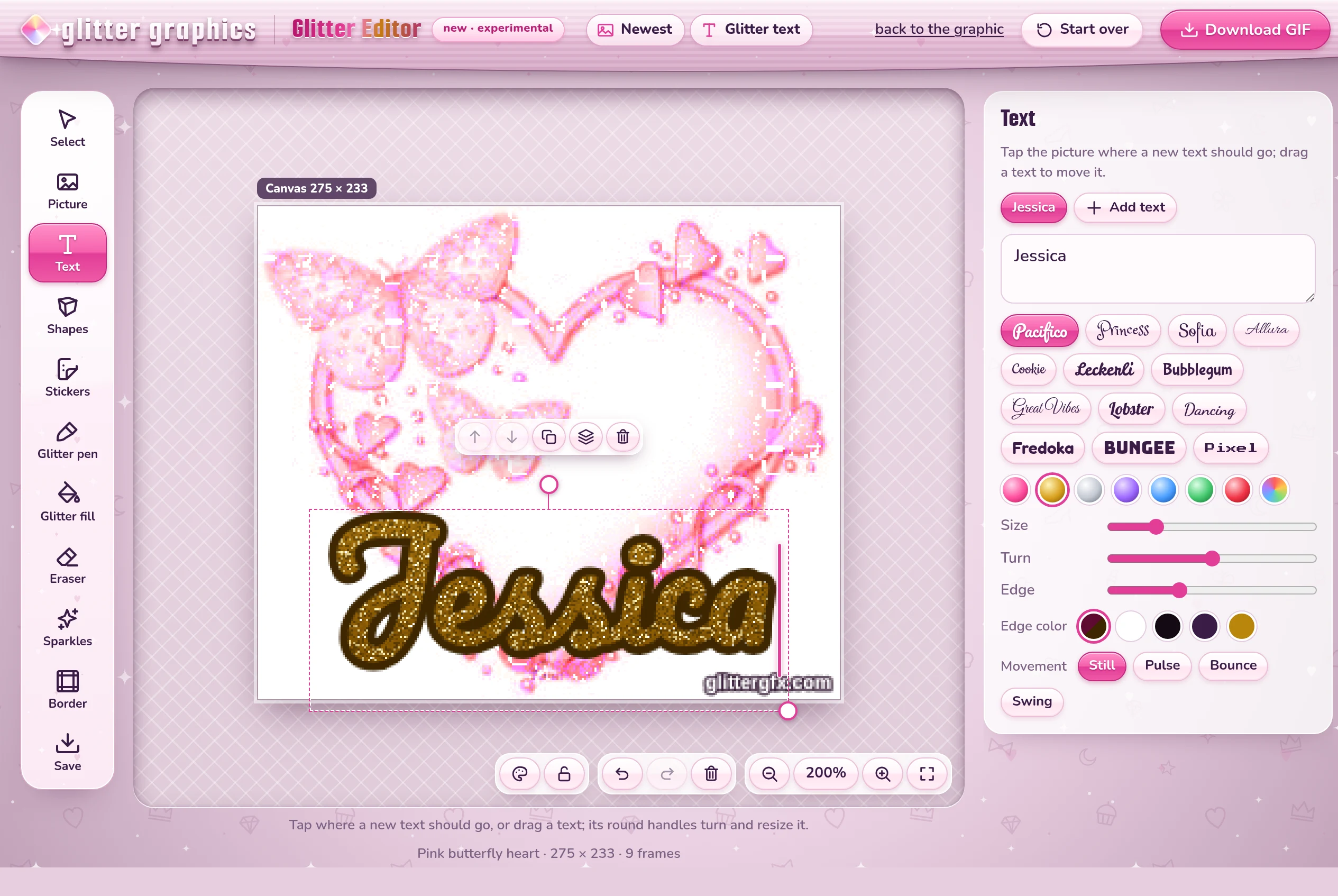
The editor opens with the Text tool chosen. Type the name in the box on the right, and it appears on the picture in glitter. Then make it yours:
- A font: thirteen of them, from Pacifico and Princess to Bungee and Pixel.
- A glitter: pink, gold, silver, purple, blue, green, red or rainbow.
- Size and Turn, and an Edge around the letters, in a color of your choice.
- Movement: still, or a pulse, a bounce or a swing.
Drag the name to move it; its round handles turn it and make it bigger or smaller. A name and a greeting? Add text gives you another one, up to four.
3 A little more sparkle
The tools on the left do more, if you like:
- Stickers of Glitter Graphics - stickers, sparkles, cute ones and blinkies: tap one to put it on the picture.
- Sparkles: tap for one, drag to sprinkle them, or use the magic wand for a trail of shimmer.
- Shapes in glitter: hearts, stars, diamonds and more.
- The Glitter pen and Glitter fill draw and color in glitter, and Border puts a glittering border around it all.
Something you did not want? Undo, the curved arrow under the picture (or Ctrl+Z), takes it back, and Start over begins again on the same picture.
4 Save it
Choose Save, the last of the tools:
- Size of the file: as you made it, or smaller.
- GIF or WebP: a GIF moves everywhere, also on Facebook; a WebP is smaller, for websites. When in doubt, take GIF.
- glittergfx.com in the corner: pick the corner for the little glittergfx.com, so friends can find where it was made. On a very small picture it is left out.
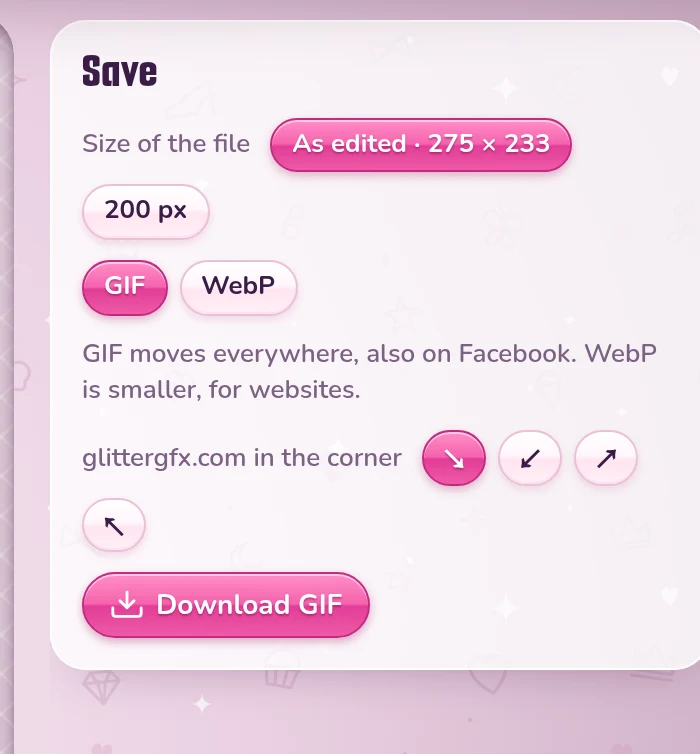
Click Download GIF. On a computer it goes to your downloads. On a phone, a button Save to Photos or share appears: it puts the GIF in your photos, or straight into the app you want to post it in.
Open the Glitter Editor or find a graphic first
Good to know
- It all happens in your browser: a photo or a picture of your own is not uploaded to Glitter Graphics.
- The pink Personalize button is under every graphic for all ages.
- A big picture with a lot of movement makes a big file. If it gets heavy, a smaller size under Save makes it lighter.
- Only words, no picture? The glitter text generator makes glittering words, and Glitter text only in the editor makes a picture of just your words.
Good to know next
 How to make glitter textYour words in glitter letters, for Facebook, a chat or your page.
 How to post glitter GIFs and glitter text on FacebookThe link that moves on Facebook and Discord, and the GIF for WhatsApp.
 How to save a GIF so it keeps movingOn a computer or a phone, and why a screenshot stands still.