

How to make pixel art, pixel by pixel
Pixel art is a picture made of little squares of one color each, called pixels - like the heroes of old video games. You need no program and no drawing skills: here is how to make your own in the Pixel Art Maker, right in your browser, and save it as a GIF to share.
1 Pick a size
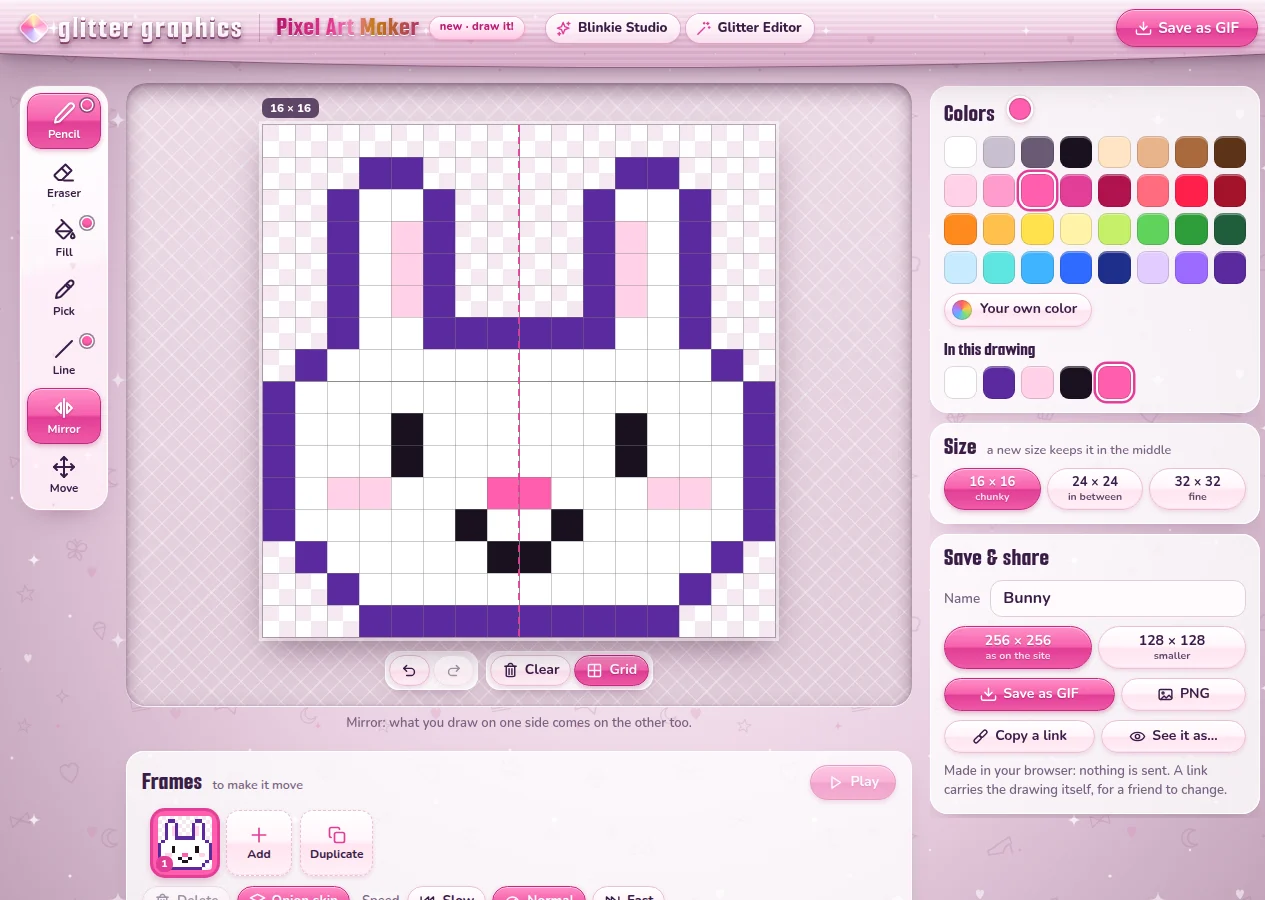
Open the Pixel Art Maker. Under Size on the right (on a phone, further down) are three grids: 16 × 16 (chunky), 24 × 24 (in between) and 32 × 32 (fine). Start with 16: with so few pixels every one counts, and a heart, a face or a little animal is done in minutes. Changed your mind? A new size keeps your drawing in the middle.
2 Draw with the tools
Click or tap a pixel to color it, or drag to color a row of them. The tools are on the left (on a phone, under the paper):
- Pencil colors one pixel at a time; Eraser makes it empty again.
- Fill colors a whole shape at once: everything that touches the pixel you tap and has its color.
- Pick takes a color from your drawing, to go on with it.
- Line draws a straight line: press, drag, let go.
- Move shifts the whole drawing; what goes off one side comes back on the other, so nothing gets lost.
Under the paper, the two arrows undo and redo every step, Clear empties the paper (undo brings it back) and Grid shows or hides the lines between the pixels. On a phone, Zoom makes the pixels as big as a fingertip - or pinch the paper with two fingers.
With a mouse: the right button erases, and holding Alt while you click picks a color. The letters work too: B for the pencil, E the eraser, G fill, L line, and Ctrl+Z to undo.
3 Draw both halves at once
Most pixel art is the same on the left and the right: a heart, a face, a butterfly, a bunny. Press Mirror and a dashed line appears down the middle of the paper: everything you draw on one side is drawn on the other side too. The bunny above took half the clicks.
4 Pick your colors
Under Colors are 32 cheerful ones, from white and black to hot pink, gold and lavender. Want another one? Your own color opens a color picker with every color there is. The colors you have used so far wait under In this drawing, so you can find them again.
A pixel artist's trick: give your drawing an edge in a dark color - dark purple, navy or dark brown instead of black - and use a lighter and a darker shade of a color for light and shadow. It looks softer and more finished right away.
5 Start from an idea or a photo
On the empty paper, Start from an idea shows a few drawings to begin with (six on a bigger screen): tap one and change it any way you like. There are twelve under Ideas below the paper - from a strawberry and a party cupcake to Boo the ghost and a princess crown - and Blank for a new, empty paper.
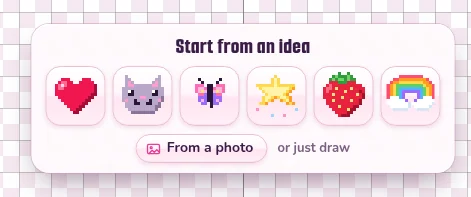
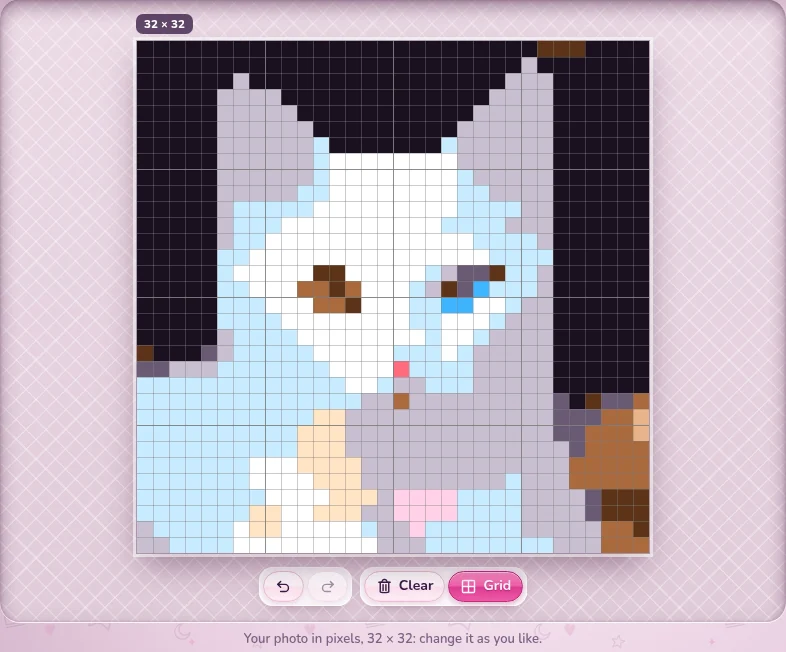
From a photo turns a photo of your own into pixels - or a GIF, which comes in moving (8 frames at most), or the first moment of a video - at the size of your paper and in the 32 colors: a pet, a flower, your favorite mug. Then tidy it up with the pencil. At 16 or 24, Make it 32 × 32 gives it more detail. For more choices, like other colors or a part of the picture, there is Image to Pixel: see how to turn a photo into pixel art.
On Glitter Graphics' own pixel art, the pink button Personalize: make it your own under a piece opens a copy of it here.
6 Save it as a GIF or a PNG
Under Save & share, give it a name, then pick the size of the file: 256 × 256, as on the site, or 128 × 128, smaller. Press Save as GIF, or PNG for a still picture. Every pixel of your drawing becomes a sharp block of one color, so it stays crisp. On a phone, Save to Photos or share opens the list of apps, to keep it in your photos or send it right away.
Your drawing is kept in this browser while you work: close the page, come back, and it is still there. Under Ideas, Blank starts a new one.
7 Send the link
Copy a link copies a link that carries the whole drawing in it - nothing is uploaded. Send it to a friend: it opens the Pixel Art Maker with your drawing on the paper, for them to change and send back.
The buttons over the paper - Beads, Diamonds, Cross-stitch and Pattern - show your drawing as ironing beads on a pegboard, as a diamond painting, as cross-stitch, or as a pattern to print, and you keep drawing on it right there, bead by bead. Pixels brings the pixels back. More in how to make a bead pattern.
Make it move: the Frames under the paper turn your drawing into a little animation - a blink, a bounce, a heartbeat. All of it is in how to make animated pixel art.
Make pixel art or see all the pixel art
Good to know next
 How to make animated pixel art (a moving GIF)Frames, onion skin and a speed: pixel art that blinks or bounces, as a GIF.
 How to turn a photo into pixel artA photo, a GIF, a video or your camera in pixels, in the colors you choose.
 How to make a Perler or Hama bead pattern from any picturePixel art or a photo as real fuse beads: the colors, the counts and a chart to print.
 Pixel art sharp on your page, and as your site iconPixel art crisp on Neocities or SpaceHey, and as the icon of your site.