

How to put a glitter graphic on your website, blog or profile
Every graphic on Glitter Graphics comes with its own code. Copy it, paste it into your page, and the graphic is there - moving, at its own size, with a link back here. It works on any site that takes HTML: a Neocities page, a blog, a SpaceHey profile, a page of your own.
1 Copy the code of a graphic
Find a graphic you like - in animated GIFs, sparkles, blinkies or any other category, or with search - and click it to open its page. Further down that page is a box that says Copy this HTML code to your profile or website. Click in the box: it selects all of the code at once. Copy it (Ctrl+C, or Cmd+C on a Mac; on a phone, tap Copy).
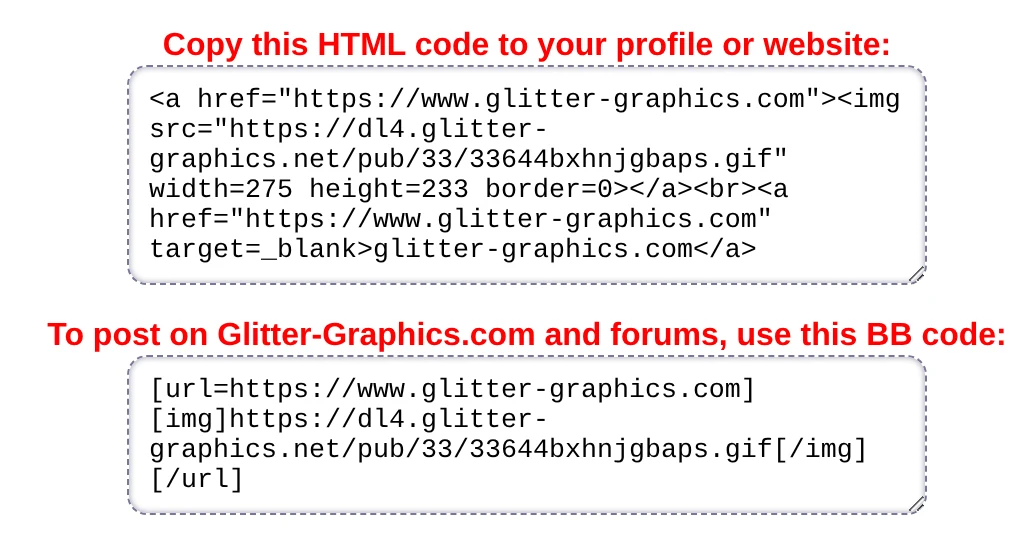
This is the code of the graphic in the picture above:
<a href="https://www.glitter-graphics.com"><img src="https://dl4.glitter-graphics.net/pub/33/33644bxhnjgbaps.gif" width=275 height=233 border=0></a><br><a href="https://www.glitter-graphics.com" target=_blank>glitter-graphics.com</a>The img is the graphic, with its width and height, and the a around it makes it a link to Glitter
Graphics. The picture itself stays on Glitter Graphics: there is no file for you to keep. A graphic of 130 pixels wide or
more also gets a small text link under it. On your page it looks like this:

2 Paste it where your page is
Where the code goes depends on where your page is. Paste it at the spot where the graphic should show:
- Neocities: on your dashboard, click Edit next to
index.html, paste the code where the graphic should be, and press Save. More about Neocities, with a whole wall of graphics, in How to add blinkies to your Neocities page. - Blogger: for your sidebar, go to Layout, click Add a Gadget where it should go, choose HTML/JavaScript, paste the code in its content box and save. In a post, switch the editor to HTML view and paste it there.
- WordPress: in the block editor, add a Custom HTML block and paste the code into it.
- SpaceHey: the boxes of your profile take HTML: paste the code into About Me (under Edit Profile) and save.
- A page of your own: paste it into the HTML of the page, anywhere between
<body>and</body>.
For Pinterest and Tumblr you need no code at all: on the page of a graphic, under the box for Facebook, are the buttons Save to Pinterest and Share on Tumblr.
3 No HTML? Share the picture itself
Instagram, TikTok, WhatsApp and most apps take no HTML code: paste it there and you get the code as text, not the graphic. There you share the picture itself:
- Facebook and Discord take a link to the picture and show it moving: copy the box Copy this to Facebook or Discord on the page of the graphic. All about it in How to post glitter GIFs and glitter text on Facebook.
- Anywhere else, save the GIF and post it as a picture: see How to save a GIF so it keeps moving.
4 On a forum: the BB code
Many forums do not take HTML but BB code, with square brackets: [img] for a picture, [url] for a
link. That is the second box on the page of a graphic: To post on Glitter-Graphics.com and forums, use this BB code.
Copy it and paste it into your post, the same way.
[url=https://www.glitter-graphics.com][img]https://dl4.glitter-graphics.net/pub/33/33644bxhnjgbaps.gif[/img][/url]Good to know
- Leave the
widthandheightin the code: then your page keeps the room for the graphic before it has loaded, and nothing jumps. - Rather have the GIF on your own site? Save it and upload it there, as in step 3 of the Neocities tutorial.
- Two graphics next to each other, or one in the middle of the page? See How to put graphics side by side, or in the middle.
- Your name on it first? Personalize: add a name, under the graphic on its page, opens it in the Glitter Editor. What you make there is a GIF of your own: put it on your page as a file of your own.
Good to know next
 How to add blinkies to your Neocities pageCopy the code or upload the GIF, a wall of blinkies, and a blinkie of your own.
 How to post glitter GIFs and glitter text on FacebookThe link that moves on Facebook and Discord, and the GIF for WhatsApp.
 How to save a GIF so it keeps movingOn a computer or a phone, and why a screenshot stands still.
 How to put graphics side by side, or in the middleSide by side, a row that wraps, or in the middle: a line or two of code.