

How to make a glitter snow globe with your name or photo
A snow globe that sparkles when you shake it, with your own words in it - a name, a greeting, or a photo of someone you love. Here is how to make one in the Glitter Globe, and how to send it to a friend.
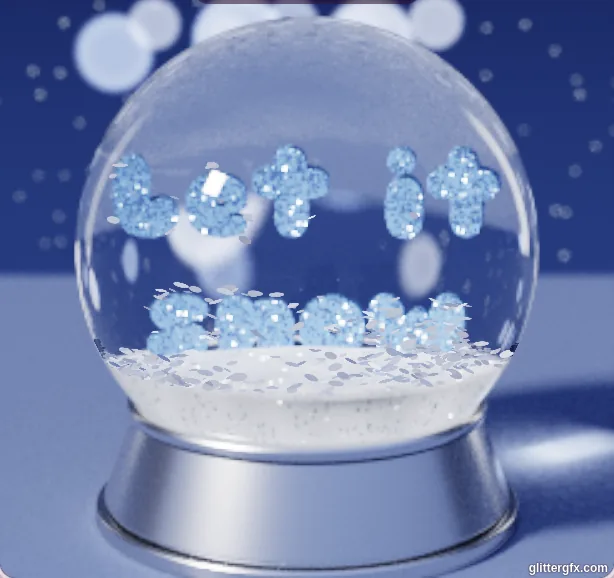
1 Type your words
Open the Glitter Globe. On the right, under Your words, type a name or a greeting. Press Enter for a second line: two short lines fit a round globe best, like Let it and snow. Under the words are eight letters to choose from, from round and bold (Titan, Lilita, Fredoka, Sniglet, Bubblegum) to written (Pacifico, Lobster) and tall (Bungee).
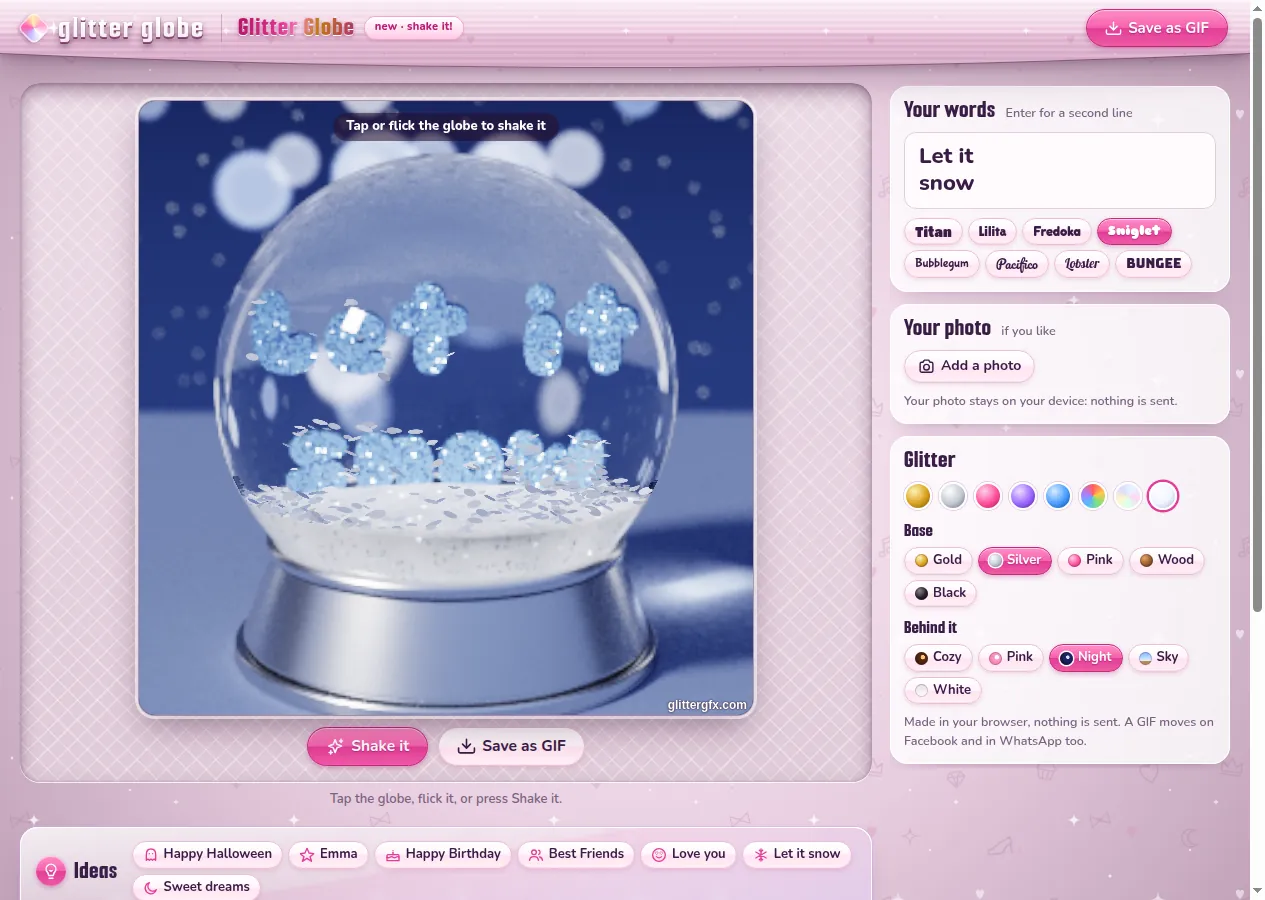
2 Pick the glitter, the base and the room
- Glitter: gold, silver, pink, purple, blue, rainbow, holographic or snow. It is the glitter of your letters and of the flakes that whirl around them.
- Base: the foot of the globe, in gold, silver, pink, wood or black.
- Behind it: the room the globe stands in: Cozy (warm lights), Pink, Night, Sky or White.
Not sure where to start? Under Ideas, one tap sets it all: Let it snow in snowy glitter on a silver base, on a winter night, Happy Birthday in rainbow colors on gold, Sweet dreams on a black base, or Love you, Best Friends and Happy Halloween. Then change the words to make it yours.

3 Shake it
Tap the globe, flick it, or press Shake it: the glitter whirls up, swirls around your words and slowly sinks back. On a phone you can really shake it - Shake your phone lets the globe feel it. When the glitter settles, the picture gets sharper by itself.
4 Put a photo in it
Under Your photo, press Add a photo and pick one: it stands in the globe in a little frame, with your words under it. A photo of your grandchildren with Merry Christmas, of your dog with its name. Take it out takes it away again.
Your photo stays with you. The globe is made in your browser: your photo is not sent anywhere.
5 Save it as a GIF
Press Save as GIF. Your snow globe becomes a moving GIF: the glitter swirls and sinks, over and over. On a phone, Save to Photos or share opens the list of apps, so you can save it to your photos or send it right away.
6 Send it
A GIF keeps moving on Facebook, in WhatsApp and on Discord. On Facebook, add it to a post or a comment as a photo; on WhatsApp, send it as a photo too. More about it in how to post glitter on Facebook and how to save a GIF so it keeps moving.
Or pick a snow globe that is ready, like these two, and add a name to it with Personalize: add a name under the graphic:


Make a snow globe or see the Christmas graphics
Good to know next
 How to make 3D glitter textPuffy 3D letters of glitter, chrome or fire that move, saved as a GIF.
 Christmas glitter for Facebook and WhatsAppChristmas graphics on Facebook and WhatsApp, with a name, in 3D letters or in a snow globe.
 How to save a GIF so it keeps movingOn a computer or a phone, and why a screenshot stands still.
 How to post glitter GIFs and glitter text on FacebookThe link that moves on Facebook and Discord, and the GIF for WhatsApp.