

How to make an 88x31 button or a stamp
Buttons are the other little graphics of the old web: 88 × 31 pixels, each with a link to a website. Stamps, 99 × 56, say what you love or who you are. On Neocities pages they are back, often by the dozen. Here is how to make your own in the Blinkie Studio, and how to put it on your page so it links where you want.


1 Start from a button or a stamp
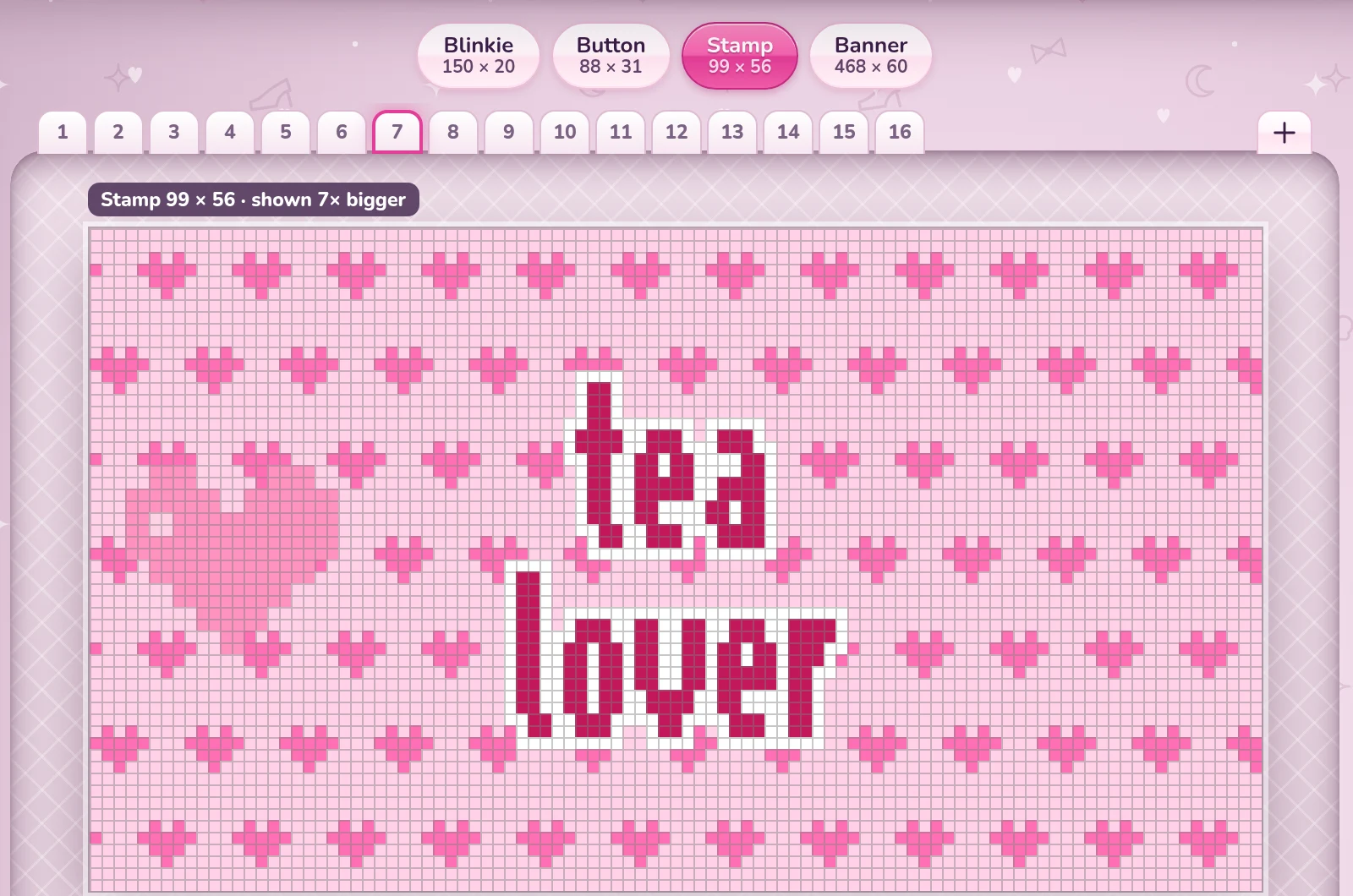
Open the Blinkie Studio. Under Buttons, stamps and banners are three to start from: Web button (88 × 31, two lines), Stamp (99 × 56, words and a sticker) and Banner (468 × 60, big words).
Working on a blinkie already? The size buttons above the picture turn it into another one: Blinkie, Button, Stamp or Banner.

2 Your words, your look
A button has room for two short lines, so Your words has a second box: A second line (or none). At 88 × 31 a few letters read best - a name, one word, or two short lines like BEST VIEWED / IN GLITTER.
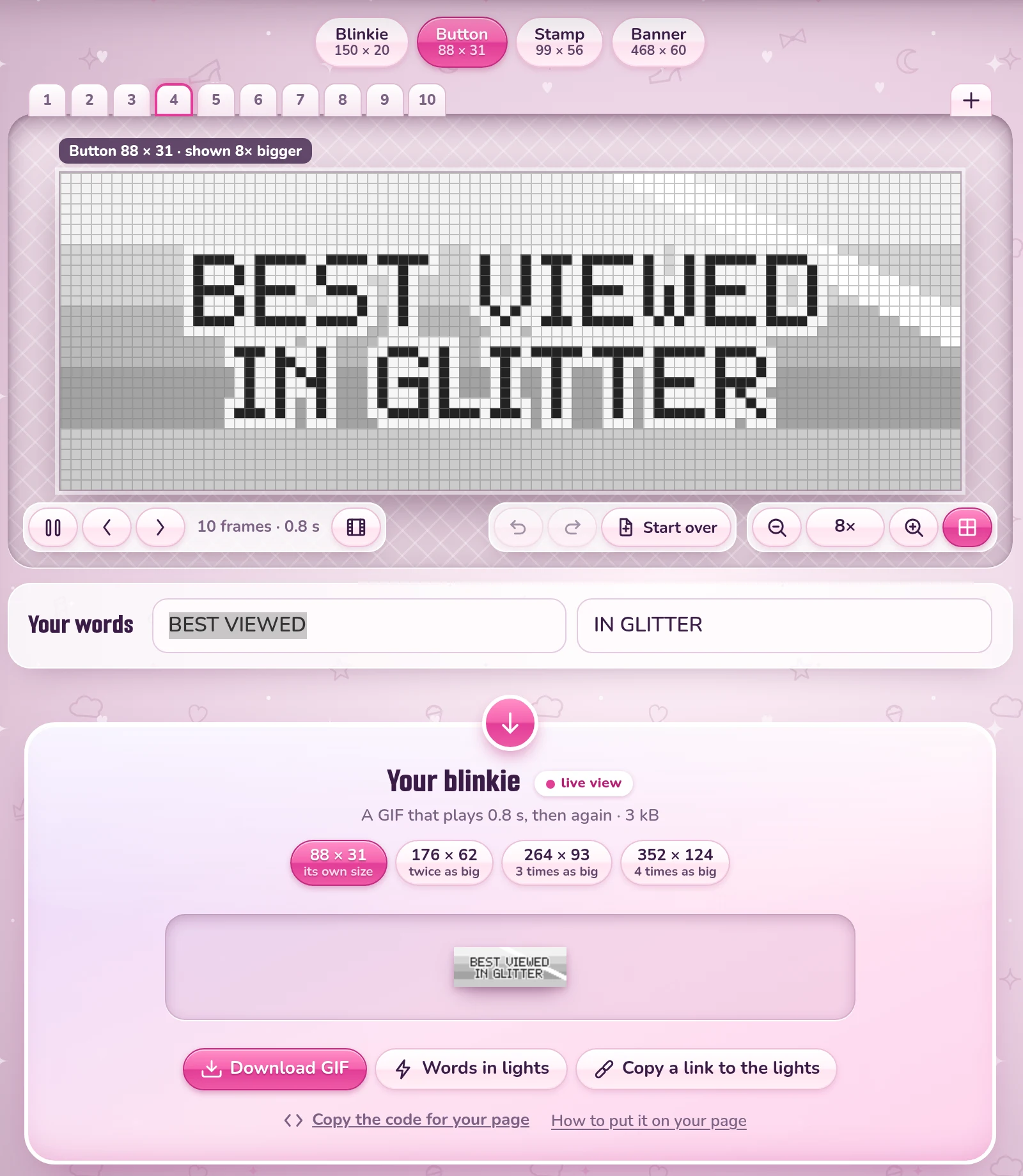
Then try the tools on the left: Colors, Background, Motion, Stickers, Draw and a Border. A stamp is a little picture with a few words: the Stamp template starts with a heart on it, and under Stickers you choose your own.
3 Download it
Under the picture, Your blinkie shows it as it will be. It offers bigger sizes too, but keep a button at its
own size: 88 × 31 is what everyone uses, so yours lines up with the buttons of your friends. Click
Download GIF. The file is named after its words, like button-best-viewed.gif.
4 Make it link to your site
Copy the code for your page, under the download, gives the HTML for your GIF in a link to the Blinkie Studio. Put the GIF next to your page, paste the code, and it shows.
A button for your own site, one that friends put on their pages to link to yours, should link to your address instead. Upload the GIF to your site, and use its full address in the code, so the code also works on a friend's page:
<a href="https://yourname.neocities.org/"><img src="https://yourname.neocities.org/button-yourname.gif" width="88" height="31" alt="Your name"></a>Old-web sites often show their button with this code under it, so visitors can copy it.
5 A wall of buttons
The buttons of friends and favorite sites, side by side: line them up as you would blinkies, each in its link.
<div class="buttons">
  <a href="https://friend.neocities.org/"><img src="https://friend.neocities.org/button.gif" width="88" height="31" alt="My friend's site"></a>
  <a href="https://yourname.neocities.org/"><img src="/button-yourname.gif" width="88" height="31" alt="My own site"></a>
</div>

<style>
  .buttons { display: flex; flex-wrap: wrap; gap: 4px; }
  .buttons img { display: block; image-rendering: pixelated; }
</style>
It looks like this, with real buttons of Glitter Graphics:
~ my friends and favorite sites ~


Make a button in the Blinkie Studio
Good to know
- Buttons are 88 × 31 and stamps 99 × 56 because everyone keeps to those sizes: that is what makes a wall of them line up. All the sizes are in Blinkie, button and stamp sizes.
- Bigger, for a page of its own? Exactly twice the size stays sharp: how to show a small GIF bigger without blurring it.
- The same code works for blinkies: see how to add blinkies to your Neocities page.
Good to know next
Blinkie, button and stamp sizesBlinkie 150x20, button 88x31, stamp 99x56 and more, at their real size. How to add blinkies to your Neocities pageCopy the code or upload the GIF, a wall of blinkies, and a blinkie of your own.
 How to put graphics side by side, or in the middleSide by side, a row that wraps, or in the middle: a line or two of code.
 How to show a small GIF bigger without blurring itOne line of CSS keeps a blinkie crisp at twice or three times its size.